

Download Spotify Chrome Extension – Fast Spotify Search, Free Music Sampling Tool
Overview: A Quick‑Access Bridge Between Chrome and Spotify
The Spotify Chrome Extension is a lightweight add‑on for Google Chrome that turns the browser into a fast‑lane for Spotify music discovery. Designed with the everyday music fan in mind, the extension lets you type an artist’s name, a song title, or even an album directly into a small pop‑up widget and instantly receive a list of matching tracks. From there, a single click launches a short preview or opens the full track in the native Spotify desktop or mobile app, depending on your system preferences.
While the core concept mirrors the standard Spotify search bar, the extension’s real power lies in its integration with Chrome’s UI. No more juggling between tabs, copying text, and pasting it into Spotify’s web player. Instead, you stay within the page you’re browsing, whether you’re reading a review, scrolling through a blog, or chatting on a forum. The extension automatically pulls metadata such as song popularity, album art, and release year, letting you sort results by name, artist, album, or popularity. The first time you click a result, Chrome prompts you for permission to open Spotify; subsequent clicks are virtually instantaneous, providing a frictionless listening experience.
In practice, the Spotify Chrome Extension shines for quick sampling. Want to hear a snippet of a new single before adding it to your playlist? Just type the title, hit enter, and you’re listening within seconds. It’s also handy for researchers, DJs, or anyone who frequently needs to verify track information without leaving the browser. Though it does not replace the full-featured Spotify desktop client, it serves as a convenient shortcut that saves time and reduces the mental load of switching contexts.
Key Features and Benefits
- Instant Search Bar: A compact, always‑available input field that appears in the Chrome toolbar.
- Multi‑Parameter Sorting: Filter results by song name, artist, album, or popularity to quickly locate the exact track you need.
- One‑Click Playback: Play a 30‑second preview directly in the extension or open the full track in Spotify with a single click.
- Rich Metadata Display: Album artwork, release year, and track duration appear alongside each result, giving you context at a glance.
- Seamless Integration: After the initial permission grant, the extension opens Spotify without additional prompts, creating a smooth workflow.
- Lightweight Design: Minimal memory footprint ensures Chrome remains fast, even with multiple tabs open.
- Free and Secure: No hidden fees, no ads, and fully vetted by the Chrome Web Store for security compliance.
- Cross‑Platform Compatibility: Works on any operating system that supports Chrome, including Windows, macOS, Linux, and Chrome OS.
- Automatic Updates: The extension receives regular updates through the Chrome Web Store, ensuring compatibility with the latest Spotify API changes.
Each of these features is engineered to streamline the music‑discovery process. For example, the sorting capability saves you from scrolling through endless lists when you’re looking for a specific album version or a less‑popular remix. The rich metadata not only enhances visual appeal but also helps you verify that you’re listening to the correct edition of a track—something that matters for collectors and DJs alike.
Security is another cornerstone of the extension. Because it operates entirely within Chrome’s sandboxed environment, it cannot access your Spotify credentials or personal data. All communication with Spotify’s servers occurs over HTTPS, ensuring that your search queries remain private. Moreover, the extension is open‑source, allowing the community to audit its code for any potential vulnerabilities.
Finally, the “free and secure” promise is backed by a transparent update mechanism. Whenever Spotify modifies its API or introduces new authentication requirements, the developers push a patch through the Chrome Web Store. Users receive a notification and can install the update with a single click, keeping the extension functional and safe without manual intervention.
Installation, Usage Instructions & Compatibility
Getting started with the Spotify Chrome Extension is straightforward. Follow these steps to install and begin using the tool:
- Open Google Chrome and navigate to the Chrome Web Store.
- Search for “Spotify Chrome Extension” and click the Add to Chrome button.
- A confirmation dialog appears; click Add extension to grant the necessary permissions.
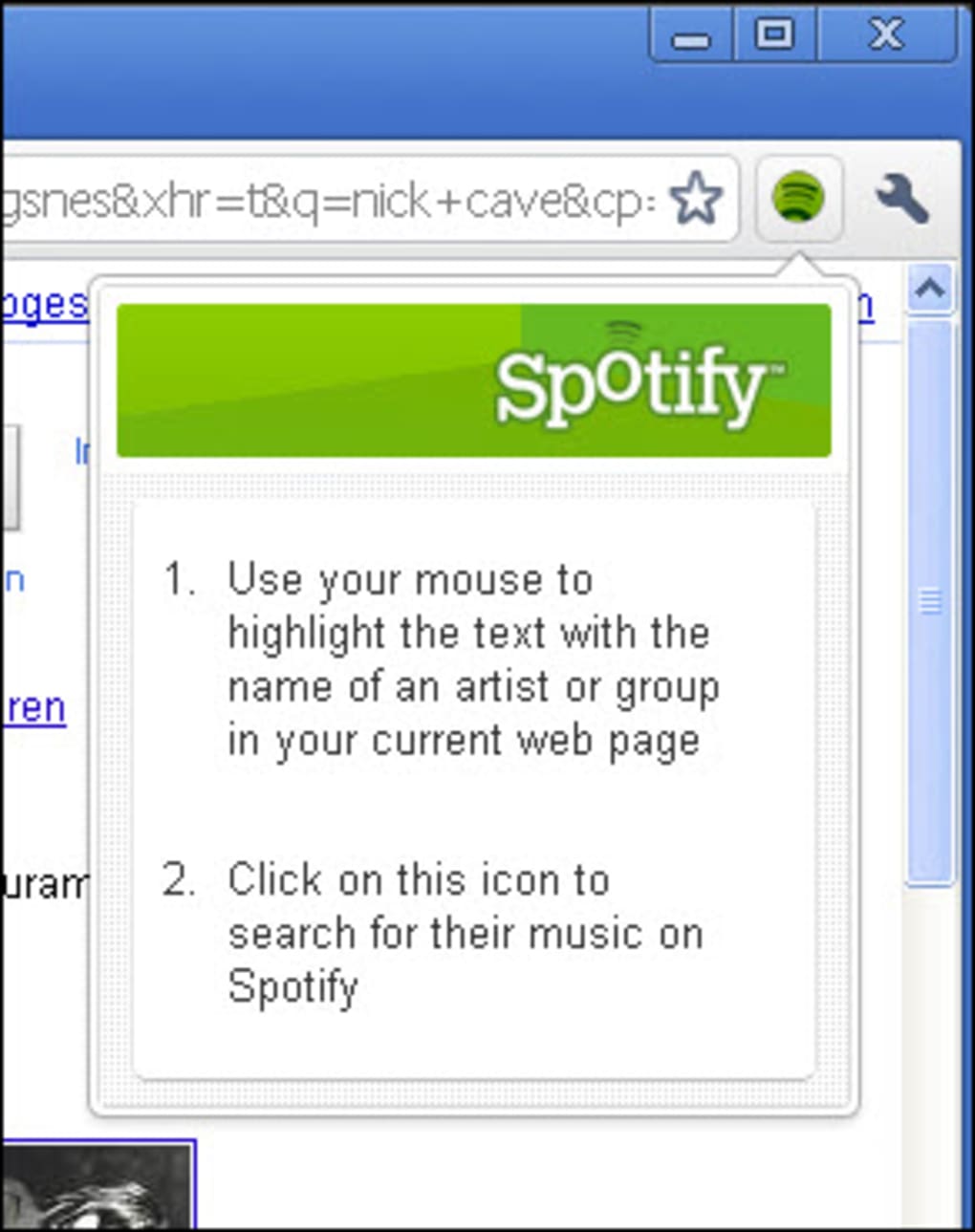
- Once installed, the extension’s icon (a green music note) appears to the right of the address bar.
- Click the icon to reveal the search input field. Type an artist, song, or album name and press Enter.
- Review the returned list, use the sorting dropdown to refine results if needed, and click the play button next to any track.
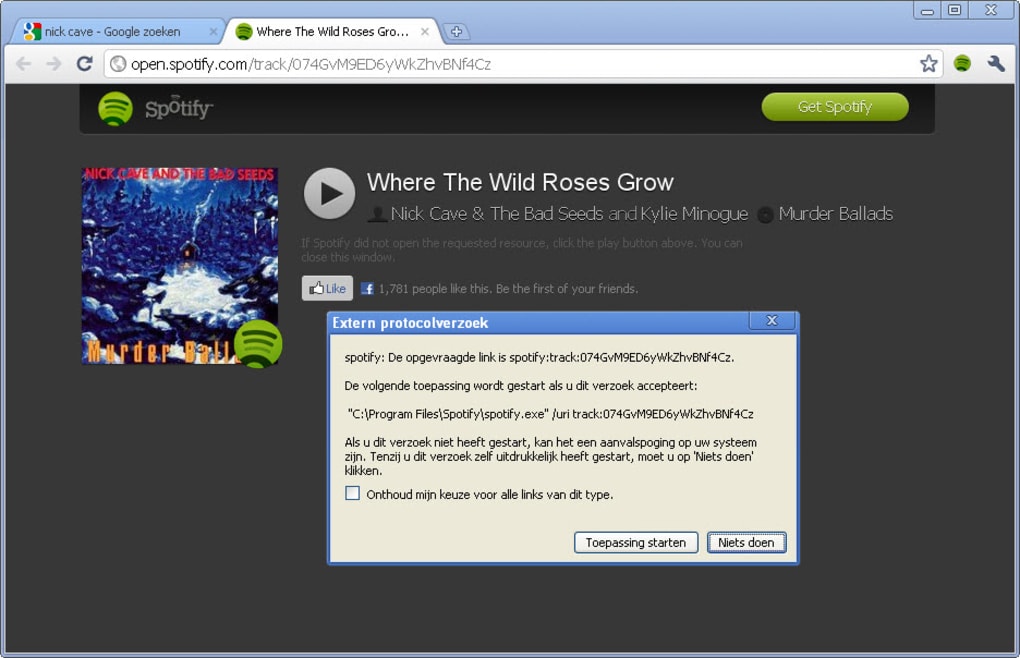
The first time you click a track, Chrome will ask for permission to open the Spotify application or web player. This one‑time prompt ensures that you have control over which program handles playback. After granting permission, future clicks launch the track instantly, whether you have the desktop client, the web player, or the mobile app open on the same device.
Compatibility is broad because the extension relies solely on Chrome’s extension framework. It works on any operating system that can run Chrome, including:
- Windows 10/11
- macOS Monterey and later
- Linux distributions with Chrome or Chromium
- Chrome OS
Because the extension does not install native binaries, there are no additional system requirements beyond a functional Chrome browser and an active Spotify account (free or premium). Users on mobile Chrome (Android) can also add the extension via the Chrome Web Store, but playback will default to the Spotify mobile app.
In terms of maintenance, the extension auto‑updates through Chrome’s built‑in update system. You’ll rarely need to intervene, but it’s good practice to periodically check the extension’s page in the Web Store for any release notes that highlight new features or bug fixes.
Pros and Cons
Pros
- Fast, one‑click access to Spotify tracks without leaving the current webpage.
- Rich sorting options help you find the exact version of a song you need.
- Lightweight and does not noticeably impact Chrome’s performance.
- Completely free with no hidden charges or ads.
- Secure communication via HTTPS and sandboxed execution.
- Cross‑platform support for Windows, macOS, Linux, and Chrome OS.
- Automatic updates keep the extension compatible with Spotify’s API.
Cons
- Initial permission prompt can be confusing for non‑technical users.
- Playback relies on having the Spotify desktop or mobile app installed; web‑only users may experience a redirect.
- Does not replace full Spotify features such as playlist management or offline listening.
- Search results are limited to the Spotify catalog; tracks unavailable on Spotify won’t appear.
- Sorting UI may feel basic compared to dedicated music‑library software.
The Spotify Chrome Extension delivers on its promise of speed and convenience. While it’s not a replacement for the full Spotify client, it excels as a quick‑lookup tool that fits seamlessly into a browsing workflow. The lightweight design, rich metadata, and zero‑cost model make it an excellent addition for anyone who spends a lot of time online and enjoys spontaneous music discovery.
Frequently Asked Questions
Is the Spotify Chrome Extension completely free?
Yes, the extension is free to install and use. There are no hidden fees, subscription costs, or ads embedded in the tool.
Do I need a Spotify Premium account to use the extension?
No, both free and premium Spotify accounts work with the extension. However, playback of full tracks may be limited to premium users; free accounts receive 30‑second previews.
Will the extension work on mobile browsers?
The extension can be added to Chrome on Android, but its functionality is limited to launching the Spotify mobile app for playback. Full desktop‑style operation is only available on Chrome for desktop platforms.
Can I sort search results by popularity?
Yes, the sorting dropdown includes an option to order results by popularity, making it easy to discover the most streamed tracks for a given artist or album.
Is my search data stored or shared with third parties?
All search queries are sent directly to Spotify’s API over HTTPS and are not stored by the extension. The developer does not share user data with third parties.
Conclusion: Should You Download the Spotify Chrome Extension?
If you’re a frequent web surfer who loves to sample music on the fly, the Spotify Chrome Extension is a solid addition to your browser toolkit. Its instant search, clear sorting options, and seamless hand‑off to the Spotify app provide a frictionless listening experience that saves time and reduces the mental effort of juggling tabs. While it won’t replace the full Spotify desktop client, it excels as a lightweight companion that keeps your music discovery process fast, secure, and free of clutter.
Ready to streamline your music browsing? Click here to download the Spotify Chrome Extension now and start sampling tracks in seconds. Enjoy a smoother, more integrated listening workflow—right from your Chrome browser.







